For many people, clicking is effortless. For others, because of arthritis, tremor, injury, limited strength or fatigue, every click takes effort, and holding a button for a drag can be painful. Operating systems and hardware offer several ways to reduce the work. This guide gives an overview of common options.
Hold-free dragging
Dragging normally means holding the button while moving. Windows ClickLock lets you press briefly to start a hold and press again to release it. macOS includes alternative pointer actions in its accessibility settings, which can turn a click or a switch into a hold. These features turn a sustained hold into two quick presses.
Using a hold-free drag
- Turn on ClickLock or an equivalent
- Press briefly on the item
- Move the pointer
- Press briefly again to drop
- Adjust timing until it feels natural
Dwell clicking
Dwell clicking performs a click when the pointer rests in one place for a set time. It removes button presses entirely. macOS includes dwell control in its accessibility settings, and other dwell tools exist for Windows. Dwell clicking takes some getting used to but can make long sessions far more comfortable.
Remapping buttons
Mouse software and system settings can move clicks to buttons that are easier to reach. Some people put the primary click on a side button pressed with the thumb, or swap left and right buttons to use a stronger finger.
| Need | Option to try |
|---|---|
| Holding is painful | ClickLock or alternative pointer actions |
| Pressing buttons is tiring | Dwell clicking |
| One finger is weak | Remap clicks to another button |
| Tremor causes extra clicks | Slower double-click setting; higher debounce |
| Wrist pain | Vertical or trackball mouse |
Alternative devices
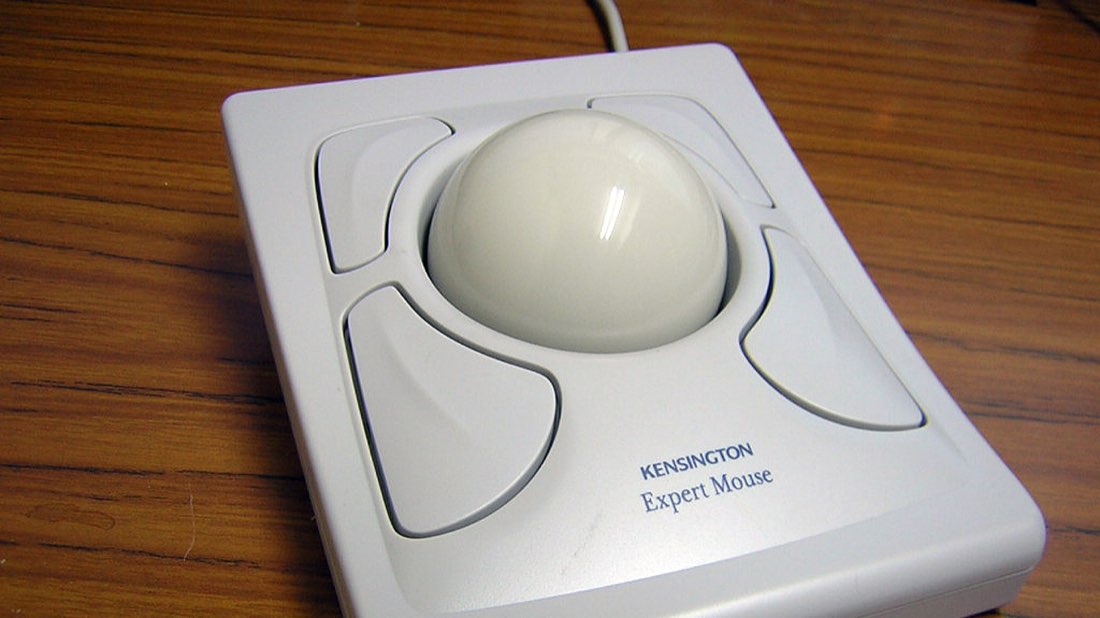
Vertical mice hold the hand in a handshake position, which some people find reduces wrist strain. Trackballs let you move the pointer without moving the arm. Trackpads with tap-to-click need only light touches. Large-button switch devices and adaptive controllers are available for people with more limited movement.
Tremor and accidental clicks
For people with tremor, extra unintended clicks can be a problem. Slowing the double-click speed reduces accidental double clicks, and a mouse with adjustable debounce can filter very quick extra presses. Some accessibility tools can also ignore brief repeated presses.
Games and accessibility
Many games now include accessibility options such as toggle instead of hold, adjustable timing and remappable controls. Click-heavy games can be made more comfortable with these settings. Platform makers and charities also provide adaptive controllers designed for players with limited mobility.
Options to explore
- Hold-free drag settings
- Dwell clicking
- Button remapping
- Alternative mice or trackballs
- Game accessibility menus
A note on click tests
MouseTally's click tests are designed for fun and practice. If clicking is painful for you, there is no need to chase a score. If you use alternative devices, the tests can still help you compare which input feels most comfortable and accurate for you.
Setting up gradually
Changing how you click can feel strange at first. Try one change at a time and give it a few days. For example, turn on hold-free dragging and use it only for moving files until it feels natural, then extend it to other tasks. If dwell clicking feels slow, adjust the dwell time in small steps until accidental clicks are rare but waiting does not feel tiresome.
Keep notes on what helps and what does not. If you work with an occupational therapist, those notes make it easier to choose the next adjustment.
Combining options
Many people combine several options rather than relying on one. A trackball can reduce arm movement while hold-free dragging removes long button holds and a remapped side button handles frequent clicks. On phones and tablets, built-in accessibility menus offer similar choices, such as larger touch targets and adjustable touch duration. The aim is to reduce effort across the whole day, not only during one task.