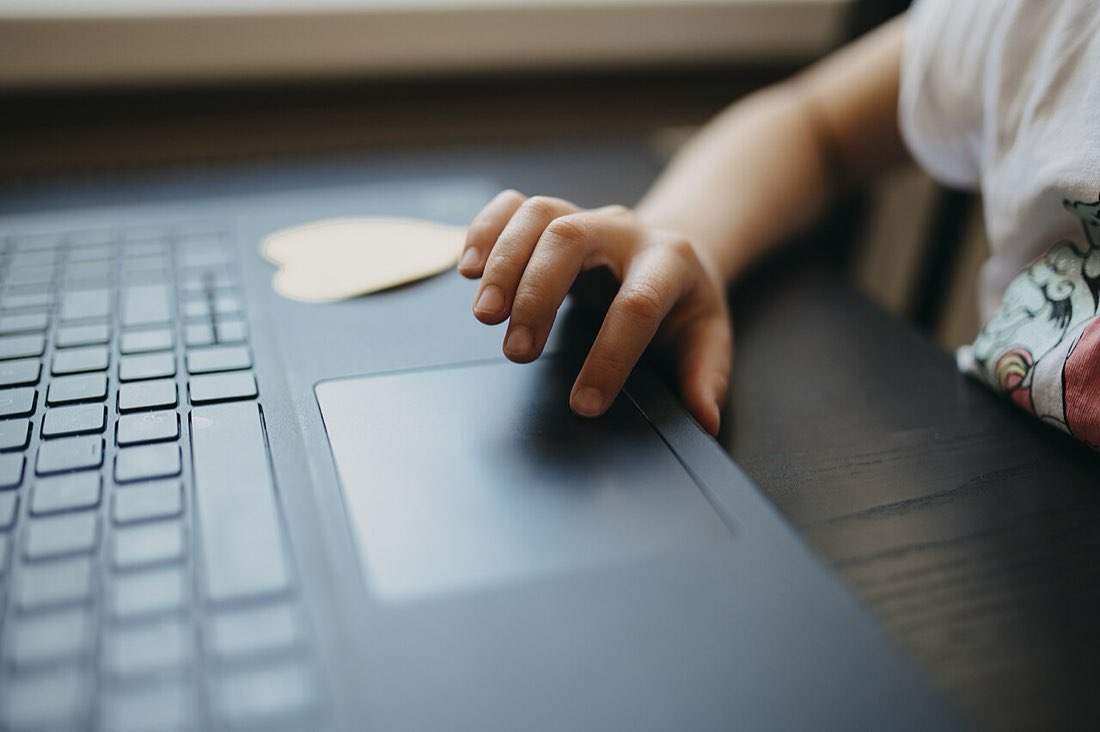
Click tests are not only for mice. Many people try them on a laptop trackpad or a phone screen. The results are often different, and the reasons are interesting: trackpads and touchscreens use different hardware and filter input differently from a mouse switch.
Trackpads: press versus tap
Most laptop trackpads support two ways to click. A physical or haptic press pushes down on the pad. Tap-to-click registers a light tap without pressing. Tapping is usually faster, because the finger travels less, but the trackpad needs to tell a tap apart from the start of a movement or gesture, which adds a small delay and occasionally misses taps.
| Input | Typical feel for fast clicking |
|---|---|
| Physical mouse button | Fast, consistent, best for high CPS |
| Trackpad press | Heavier, slower |
| Trackpad tap-to-click | Fast but sometimes missed |
| Touchscreen tap | Fast, but taps that move are ignored |
Gestures get in the way
Two fingers on a trackpad usually mean scroll or right click. That makes butterfly-style tapping unreliable. Some trackpads also ignore taps when the palm is resting on them, to prevent accidental clicks while typing. If your taps seem to vanish, check palm rejection and tap settings in the system preferences.
Touchscreens
On phones and tablets, a tap is registered when a finger touches and lifts without moving much. If the finger slides, the system treats it as a scroll instead. Very fast tapping can also be filtered as accidental. Using two thumbs alternately on a large target, such as the MouseTally dial, can produce good scores.
The MouseTally tests work on phones: the dial is large, and the layout switches to a single column with the test list in a slide-out menu.
Getting a fair touch score
- Hold the phone steady with one hand or on a table
- Tap the centre of the dial
- Lift the finger fully between taps
- Avoid sliding
- Try alternating thumbs
Why scores differ from a mouse
A mouse switch registers the press the instant the contacts close. Touch input has to decide whether a touch is a tap, a drag or a gesture, and that takes a little time and filtering. Neither is wrong; they are simply different measurements, so compare touch scores with touch scores and mouse scores with mouse scores.
Testing on a laptop or phone
- Turn on tap-to-click if you want faster taps
- Disable gestures you do not need
- Keep the palm off the trackpad
- Tap without sliding
- Compare scores on the same device
Accessibility note
For some people, taps on a trackpad or touchscreen are easier than pressing a mouse button. If clicking a mouse is uncomfortable, it is worth trying tap-to-click or a touchscreen for everyday tasks.
Settings that help on laptops
Trackpad behaviour is adjustable on most systems. You can usually turn tap-to-click on or off, change how firmly a press must be to register, adjust the delay before a tap is recognised and choose what two-finger and three-finger gestures do. If taps are being missed or misread, reducing the number of active gestures often helps.
Some laptops also offer a setting that ignores the trackpad while you type, which prevents accidental clicks from the palm.
Stylus and pen input
On tablets and some laptops, a stylus offers another way to click. Taps with a pen tip are precise and can be fast, though each tap involves lifting the pen fully. Many people find a stylus comfortable for long sessions because the grip is similar to holding a pen. Click tests work with stylus taps just as with fingers, and the result is another useful comparison.